C64 programmers usually turn to CBM PRG Studio, and I even suggest it as a go-to (heh) in my C64 BASIC Programming course series, but it is only natively compiled for Windows.
You can, with some effort, get CBM PRG Studio for Mac and Linux using Wine, but that is a lot of time and disk space to expend to get an IDE for a vintage computer working.
Ideally we would be able to use a familiar, modern, cross-platform IDE.
Surprise! You can code for the C64, for free, using Microsoft Visual Studio Code!
The Commodore 64 Programming Extension – VS64
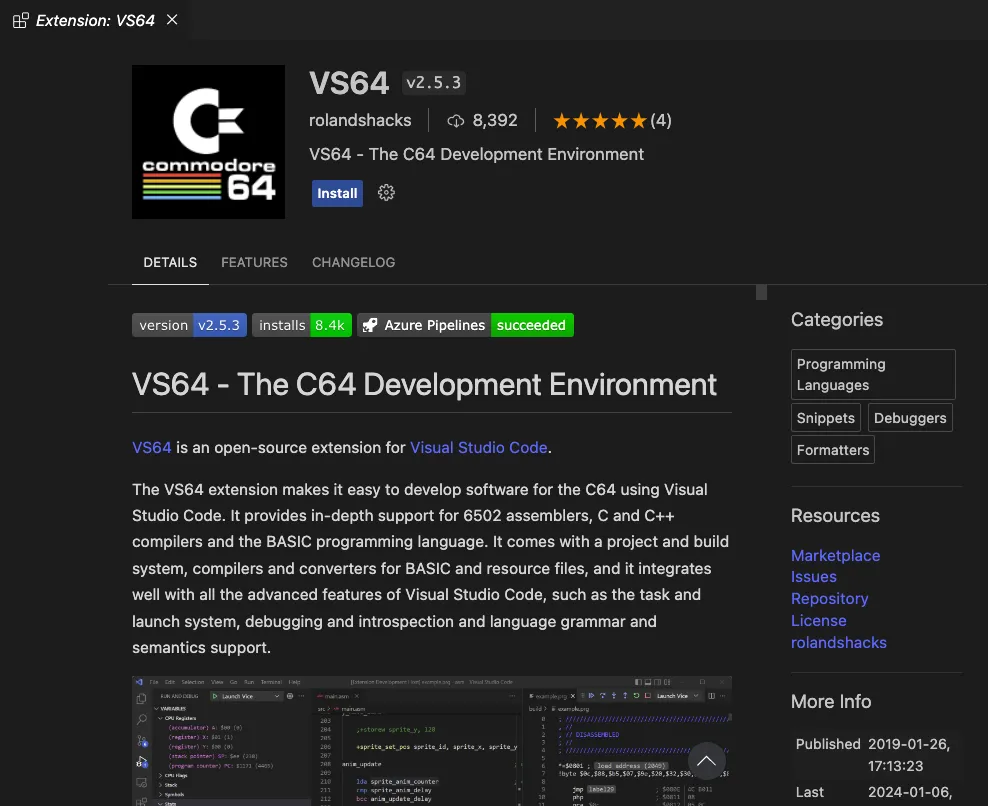
VS64 is a Visual Studio Code extension for C64 programmers by Rolandshacks on Github. It has syntax highlighting, tools and integrations for BASIC, Assembly and C programming.
At the time of writing it is on version 2.5.3 but the best way to install it is through Visual Studio Code itself.
Simply open VS Code and open the Extensions Marketplace to search for “vs64” and you should fine it right away.
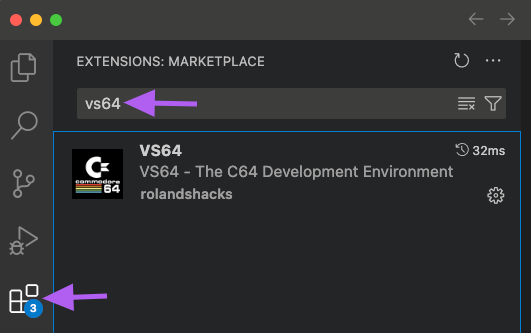
Once you have found the extension you just need to click the blue Install button.
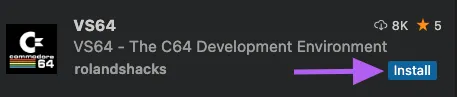
If you want to know more about the extension you can browse the page that is available on clicking the extension card. This is all the same information available on the Github page linked earlier.
Setting up VS64
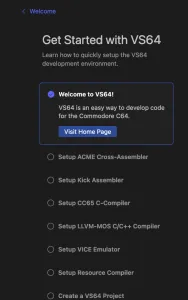
There are three parts to using VS64:
- Installing the required tools (if you are going to be compiling and debugging).
- Configuring the settings to point to your compilers and assemblers.
- Project settings, to tell VSCode how to understand your new project.
After installing the extension you have an opportunity to go through a setup wizard, but you can always change your settings using the little cog icon on the extensions page within Visual Studio.
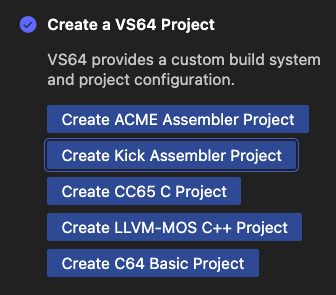
Once the wizard is done you can create a project, and later
6502 Assembler
VS64 supports both ACME and Kick assemblers.
C/C++ Compilers for the C64
VS64 supports both the CC65 6502 C Compiler and LLVM-MOS C/C++ Compiler
VICE C64 Emulator and 6502 Debugger
VS64 supports debugging using the VICE Commodore 64 emulator.
- Install from Sourceforge.
- or on Ubuntu/Debian/Raspberry Pi:
sudo apt install vice
Commodore BASIC Integration
VS64 supports BASIC natively without anything required to be installed but it has some extra tricks and tools that make the experience better than coding on the C64 itself, outside of the obvious benefit of 80+ column text and syntax highlighting!
- Supports Commodore BASIC V2 and Simon’s BASIC (TSBneo)
- Upper/Lower Case Character Sets
- Auto-Numbering
- Code crunching
- Removal of spaces
- Line number re-ordering
- Removal of REM statements
My favourite feature, however is being able to use labels instead of line numbers. For example:
label1:
    A$="HELLO"
    PRINT A$
    GOTO label1
Will be converted on the Commodore 64 to:
1 A$="HELLO"
2 PRINT A$
3 GOTO 1
VS64 can bundle binary resources to be referenced by your code (requires Python 3):
- SpritePadPro and SpritePad 1.8.1 file format (.spd)
- CharPad64Pro file format (.ctm)
- SpriteMate file format (.spm)
- SID file format (.sid)
- Raw binary data (.raw)
PETSCII Control Characters
Like in CBM PRG Studio, PETSCII control characters are supported in BASIC via special strings:
PRINT "{clr}HELLO, {green}WORLD{$21}{lightblue}"
The following mnemonics are available:
{space}, {return}, {shift-return}, {clr}, {clear}, {home}, {del}, {inst}, {run/stop}, {cursor right}, {crsr right}, {cursor left}, {crsr left}, {cursor down}, {crsr down}, {cursor up}, {crsr dup}, {uppercase}, {upper}, {cset1}, {lowercase}, {lower}, {cset0}, {black}, {blk}, {white}, {wht}, {red}, {cyan}, {cyn}, {purple}, {pur}, {green}, {grn}, {blue}, {blu}, {yellow}, {yel}, {orange}, {brown}, {pink}, {light-red}, {gray1}, {darkgrey}, {grey}, {lightgreen}, {lightblue}, {grey3}, {lightgrey}, {rvs on}, {rvs off}, {f1}, {f3}, {f5}, {f7}, {f2}, {f4}, {f6}, {f8}, {ctrl-c}, {ctrl-e}, {ctrl-h}, {ctrl-i}, {ctrl-m}, {ctrl-n}, {ctrl-r}, {ctrl-s}, {ctrl-t}, {ctrl-q}, {ctrl-1}, {ctrl-2}, {ctrl-3}, {ctrl-4}, {ctrl-5}, {ctrl-6}, {ctrl-7}, {ctrl-8}, {ctrl-9}, {ctrl-0}, {ctrl-/}, {c=1}, {c=2}, {c=3}, {c=4}, {c=5}, {c=6}, {c=7}, {c=8}
C64 Assembly Example with KickAssembler
In a new VSCode window, open your folder where the project will live then select Show All Commands (Shift-CMD/Ctrl-P) and type vs64.
A list of vs64 options will appear like so:
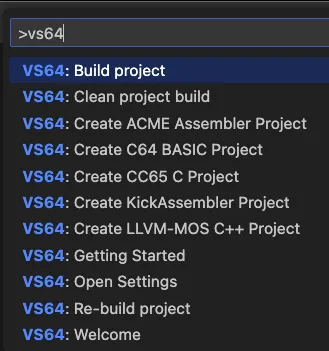
Now select your chosen project. I will create a KickAssembler project.
In the Src folder you will find an example main.asm which you can use or clear to start afresh. I will add the code found below …
//
// Hellorld
//
*=$0801
.byte $0c,$08,$b5,$07,$9e,$20,$32,$30,$36,$32,$00,$00,$00
jmp main
hellotext:
    .text "hello, commodore 64!!"
    .byte $0
    .const ofs = 10
main:
    ldy #0
    lda #$00
    sta $d020
    sta $d021
    tax
    lda #$20
loop:
    sta $0400,x
    sta $0500,x
    sta $0600,x
    sta $0700,x
    dex
    bne loop
hello:
    lda hellotext,y
    beq !loop+
    sta $400+ofs,y
    lda #1
    sta $d800+ofs,y
    iny
    jmp hello
!loop:
    rts
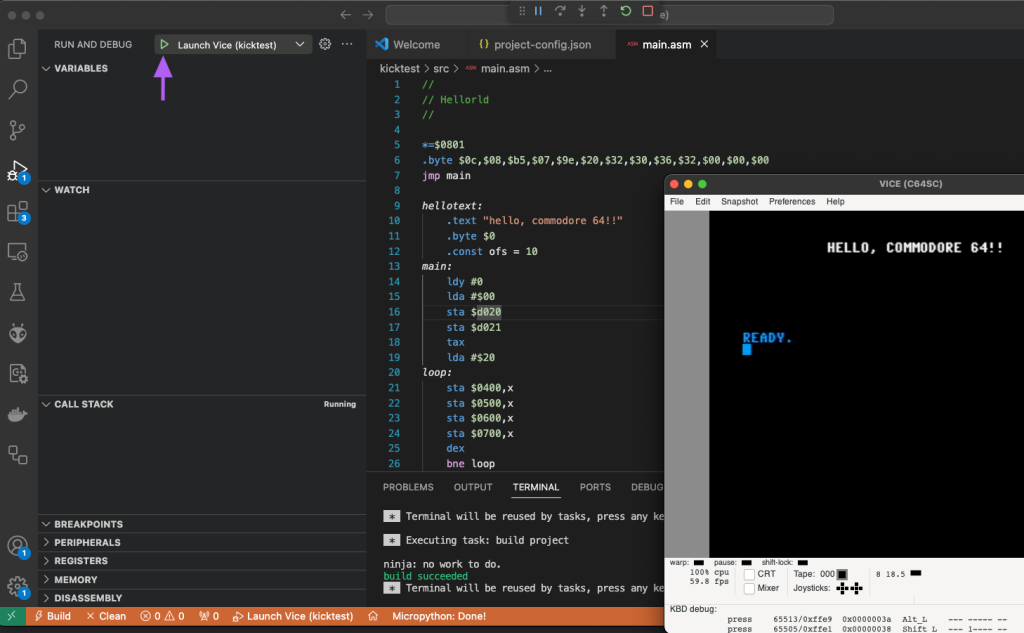
Saving the file will automatically run KickAssembler, you simply need to select Run followed by Run and Debug, or click the debug button in the left toolbar, then click the green arrow at the top, to run your new program in Vice!